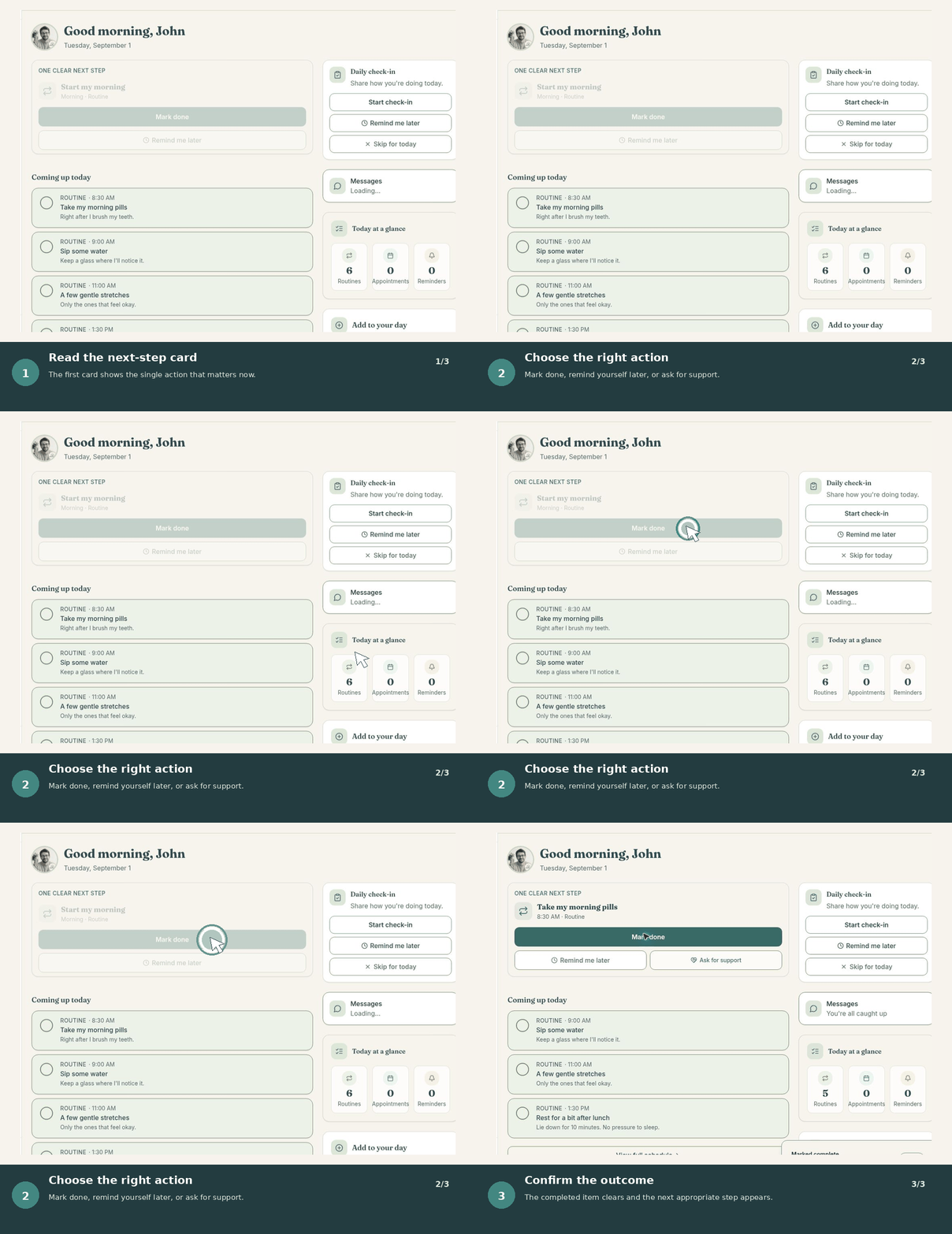
What appears on Today
Your Today page gathers routines, reminders, appointments, check-ins, messages, and the next useful action into one calm view.
- Routines repeat on the schedule you choose.
- Reminders help you remember a specific task or detail.
- Appointments keep time-based commitments visible.
- Check-ins let you record how the day is going.
Use your next clear step
BranchDaily highlights one useful action so you do not have to decide where to begin. Completing it does not remove your other information; it simply helps you focus.
- Open Today.
- Review the item shown as your next step.
- Complete it, open it for details, or choose another item when needed.
- Return to Today to see what comes next.
Understand status labels
Items may appear as upcoming, due, completed, or needing attention. “Needs attention” means BranchDaily wants you to review the item; it does not mean there is an emergency.
Complete a daily check-in
Use a check-in to record mood, energy, or a short note. You choose whether check-in information stays private or is shared with permitted support members.
Make changes
Open an item to update its details, schedule, or completion status. If a support member suggested a change, review it before accepting when your permissions use suggest-only access.